🎬 Create daily branded content visuals from Google Sheets with Canvora and Slack
⚡ 7 views · 🎬 Content Creation & Video
Description
Quick overview
This workflow runs daily, reads a Google Sheets content calendar for the next row marked todo, sends the idea to Canvora to generate branded visuals, then posts the finished image links (or a failure/timeout alert) to a Slack channel.
How it works
- Runs every day at 8am on a schedule.
- Reads rows from a Google Sheets spreadsheet and keeps only items where the
statuscolumn equalstodo. - Takes the first eligible row and submits its
idea(plus optionalformat,language, andbrandId) to the Canvora Generations API. - Waits 30 seconds and repeatedly polls Canvora for the generation status until it completes or a timeout threshold is reached.
- If the generation completes successfully (including partial success), sorts the returned outputs and posts a Slack message with ordered image links and a Canvora review URL.
- If the generation fails, is cancelled, or times out, posts a Slack alert with the status and a link to the Canvora dashboard.
Setup
- Connect Google Sheets credentials and select the target spreadsheet and sheet in the Google Sheets read step.
- Create a Canvora account, generate an API key, and add an HTTP Header Auth credential that sends
X-API-Key: <your key>for the Canvora requests. - Connect Slack credentials and set the destination channel for the review and failure notifications (for example,
#content). - Ensure your Google Sheet has headers that match the workflow fields (
idea,format,language,brandId,status) and mark rows you want processed withstatus=todo. - Adjust the schedule time and the timeout/polling behavior if you want a different daily run time or maximum wait duration.
Requirements
- A free Canvora account (API keys on all plans).
- Google Sheets + Slack connections.
Customization
- Formats: 100+ - GET /api/formats. Cost: 10/visual, 15/carousel slide.
- Add a Google Sheets update node after Slack to mark rows
doneautomatically. - Raise the Limit node above 1 to design several rows per day.
Additional info
- Core nodes: Cloud & self-hosted. Nodes: Schedule Trigger, Google Sheets, HTTP Request, Wait, IF, Code, Slack.
- Works inside ChatGPT, Claude & any workflow → canvora.ai/for-agents.
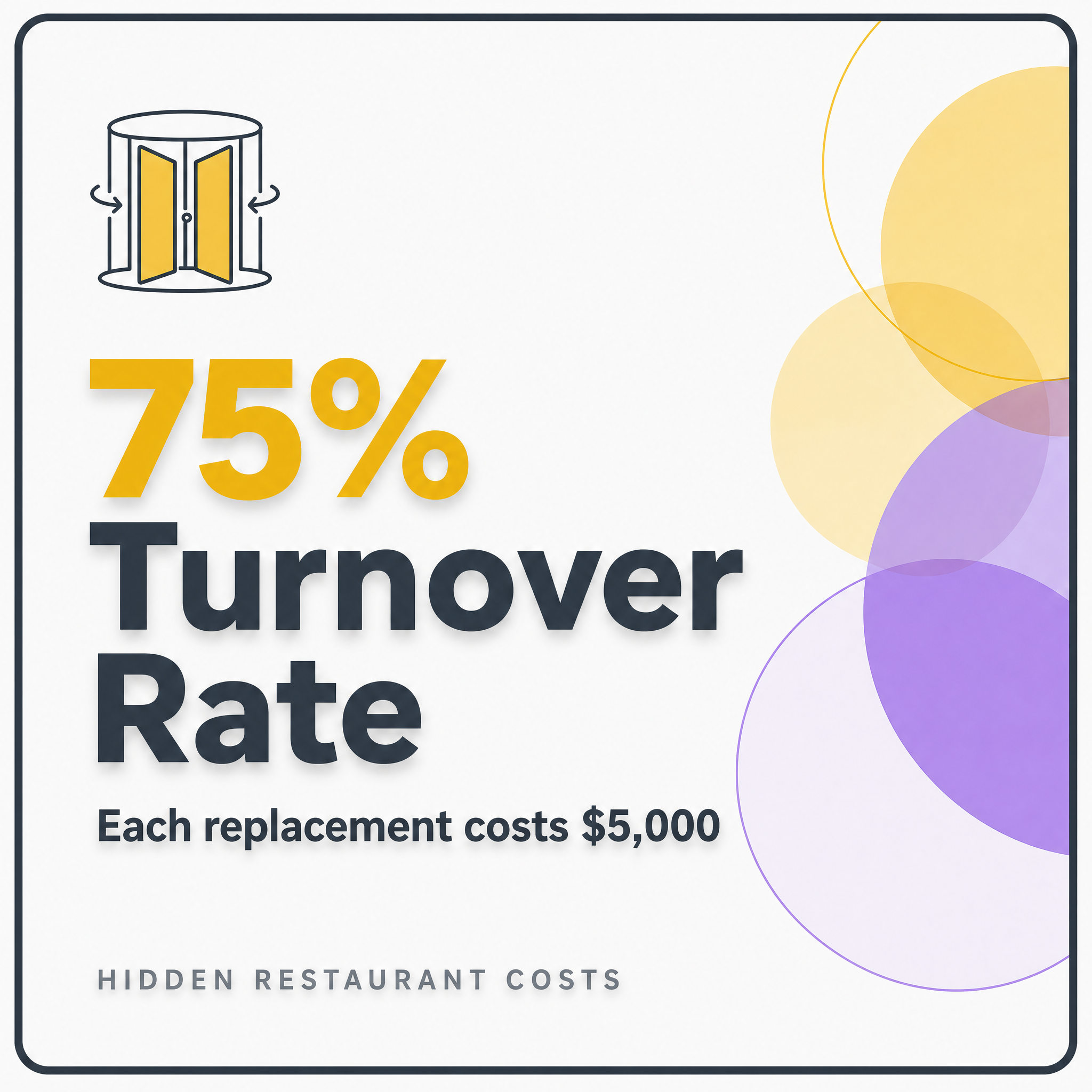
Example output (from the sheet row “5 hidden costs of running a small restaurant” – real run):
🔗 Nodes Used
Google Sheets, HTTP Request, Slack, Schedule Trigger, Filter
📥 Import
Download workflow.json and import into n8n:
Workflow menu → Import from File