🎬 Create YouTube thumbnails and quote cards from Drive videos with OpenAI and Canvora
⚡ 59 views · 🎬 Content Creation & Video
💡 Pro Tip — YouTube’s API quotas can be a bottleneck when you’re pulling data at scale. ScraperNode is a community node with dedicated scrapers for channels, videos, and comments — no quota limits, just structured data.

Description
Quick overview
This workflow watches a Google Drive folder for new videos, transcribes the audio with OpenAI, generates a thumbnail headline and pull quotes, sends them to Canvora to design a YouTube thumbnail and quote cards, then creates a Gmail draft with the results for review.
How it works
- Triggers when a new file is created in a specific Google Drive folder.
- Downloads the video from Google Drive and transcribes its audio using OpenAI.
- Uses OpenAI to extract a short thumbnail headline and three pull-quotes from the transcript and formats them into a single concept payload.
- Sends the concept to the Canvora API to generate a YouTube thumbnail and quote card visuals.
- Polls Canvora for the generation status until it completes, fails, or times out.
- If the generation succeeds, builds an HTML review message with the generated image URLs and creates a Gmail draft containing the visuals and an edit link.
Setup
- Connect your Google Drive account and select the folder to watch in the trigger.
- Add an OpenAI credential for audio transcription and text extraction.
- Create a Canvora account, generate an API key, and configure the Canvora HTTP Request nodes to send it via header authentication (X-API-Key).
- Connect your Gmail account and set the draft settings (such as the target mailbox and any default options) as needed.
Requirements
- A free Canvora account (API keys on all plans).
- Google Drive + Gmail connections, and an OpenAI API key (transcription + concept).
Customization
- Add ‘instagram_reel’ or ‘twitter_post’ to outputFormats (100+ formats: GET /api/formats).
- Pass a ‘brandId’ (GET /api/brands).
- Change “Create Gmail Draft” to “send” to skip review, or upload the images to Drive.
Additional info
- Core nodes – Cloud & self-hosted. Nodes: Google Drive Trigger, Google Drive, OpenAI (transcribe + chat), Code, HTTP Request, Wait, IF, Gmail.
- Works inside ChatGPT, Claude & any workflow → canvora.ai/for-agents.
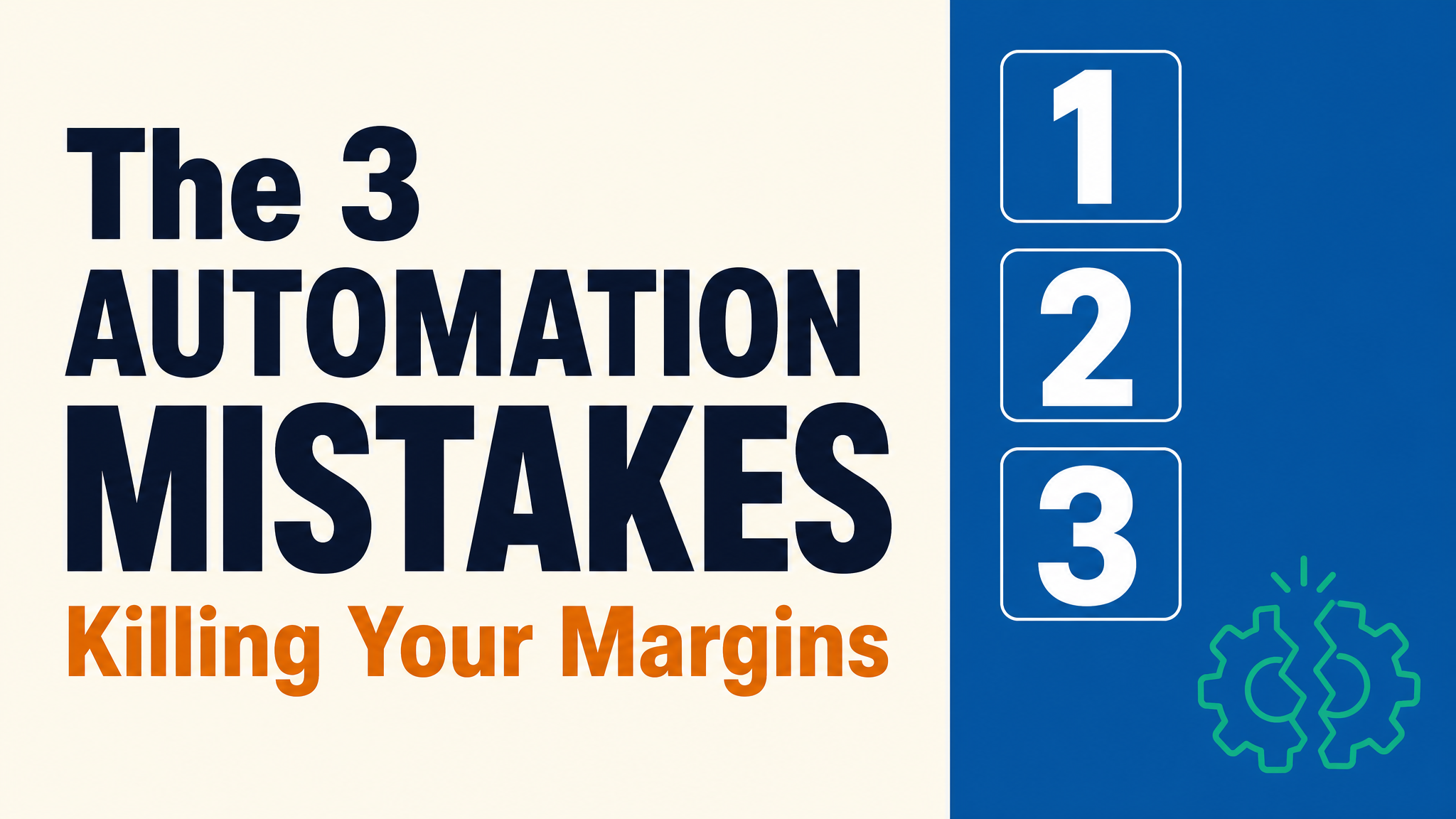
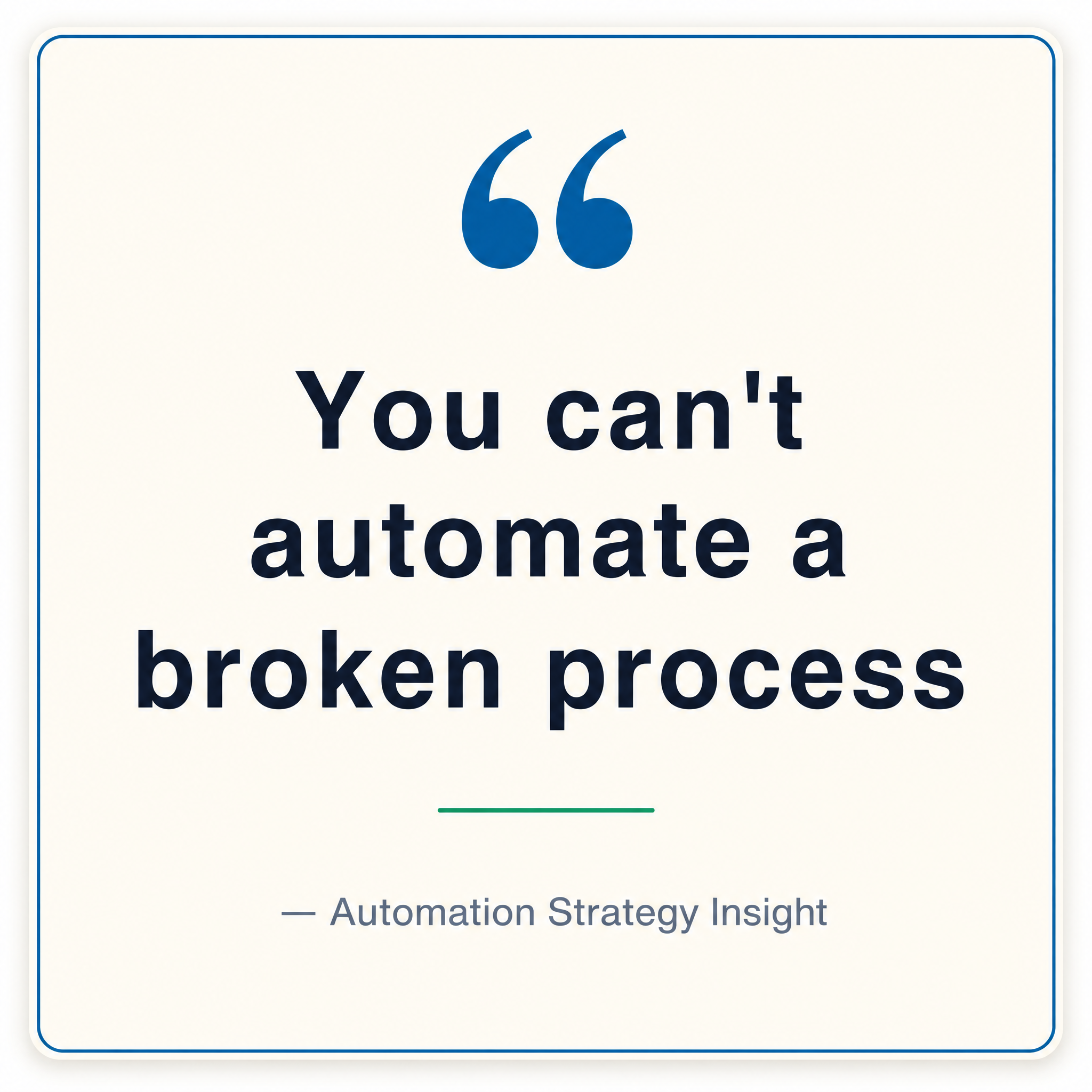
Example output (thumbnail + quote card from a video transcript – real run):
🔗 Nodes Used
HTTP Request, Google Drive, Gmail, Google Drive Trigger, OpenAI
📥 Import
Download workflow.json and import into n8n:
Workflow menu → Import from File