🎬 ✨ ideoGener8r – complete Ideogram AI image generator UI with Google integration
⚡ 1,336 views · 🎬 Content Creation & Video
Description

ideoGener8r – Self-Hosted Ideogram AI Interface in n8n
🔥 March Sale – n8n Community Members Get ideoGener8r for Just $27! (Reg. $47)
Use Coupon Code: ILoven8n
(Valid until 3/31/2025 for n8n community members)
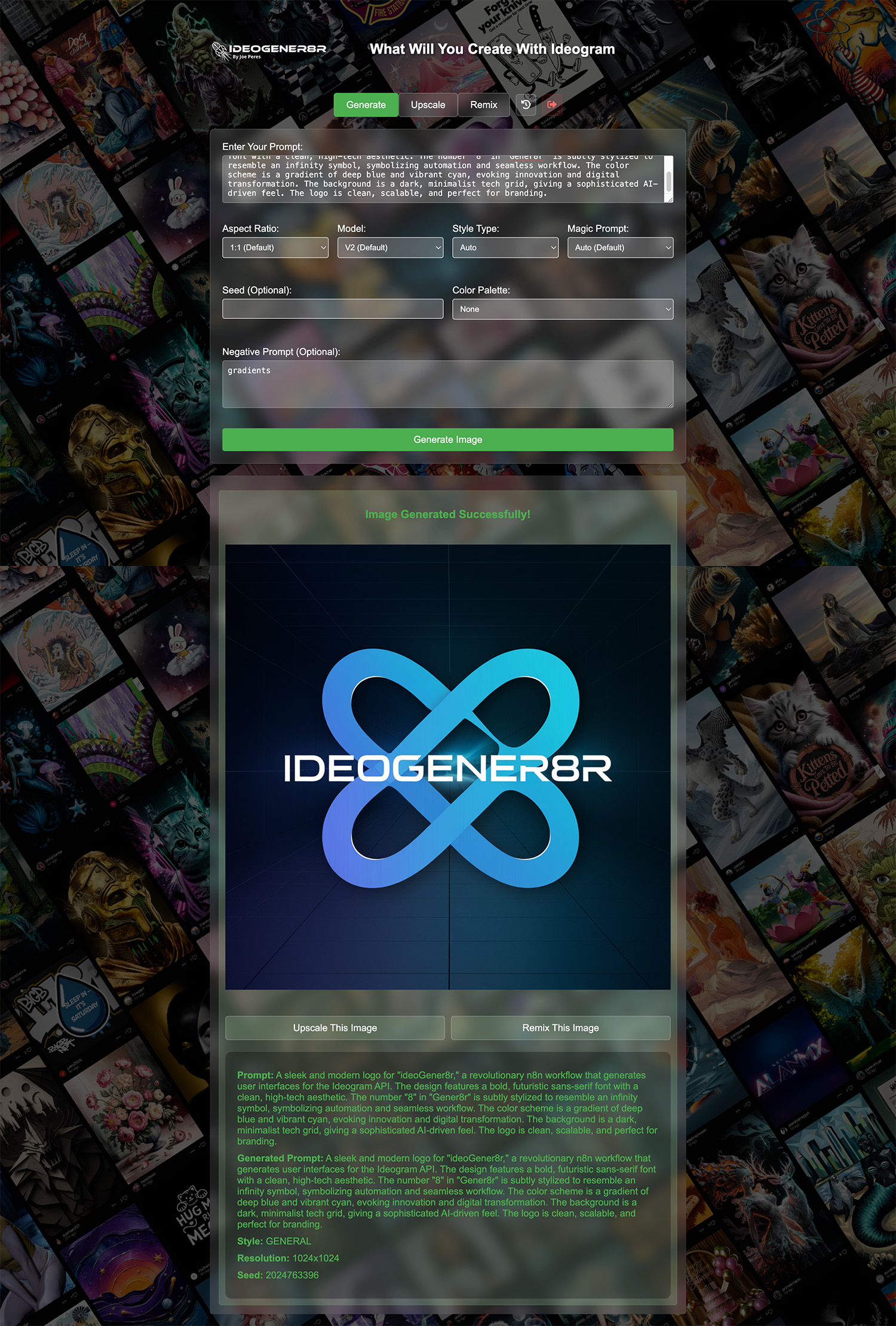 ideoGener8r is an n8n template that sets up a self-contained, front-end interface for Ideogram AI image generation. It offers a complete workflow to generate, upscale, remix, and store images—entirely on your self-hosted n8n instance.
Key Benefits & Limited-Time Offer
- Fully Self-Hosted: Avoid monthly fees and keep your data private.
- All-in-One: Generate, remix, and upscale images without third-party tools.
- Streamlined Automation: Integrates directly with Google Sheets & Drive.
- Sale: Save $20 – Get ideoGener8r for just $27 with coupon code
ILoven8n(valid until 3/31/2025).
Requirements & Overview
- Ideogram AI API Key
- Sign up at Ideogram AI and create an API key.
- Google Sheets & Drive
- A Google Sheet for storing metadata.
- A Google Drive folder for saving generated images.
- n8n Auth Credentials
- Basic Auth for the login webhook.
- Header Auth (Bearer token) for the generation/remix webhooks.
With ideoGener8r, you can instantly create a private user interface—within n8n—to produce AI images on demand, trigger image generation through webhooks, and automatically log data to Google Sheets.
Required Google Sheet Columns
Your Google Sheet must contain (at minimum) the following columns for proper logging:
Cheeck Setup note in workflow for csv template
Step-by-Step Setup Instructions
-
Import the Template
- Download the JSON file you received upon purchase.
- In your n8n instance, go to Workflows → Import, then upload the JSON file.
-
Configure Ideogram API
- In n8n, create an HTTP Header Auth credential.
- For the “Authorization” header, use
Bearer YOUR_IDEOGRAM_API_KEY. - Attach this credential to the Ideogram-related nodes (e.g., IDEOGRAM Image generator, ideogram Upscale).
-
Google Sheets Setup
- Copy or create a Google Sheet with the columns listed above.
- In the template, locate the Google Sheets “Append” nodes.
- Select the correct Sheet, tab, and map each column accordingly.
-
Google Drive Folder
- Create a Drive folder to store images (sharing permissions are up to you).
- In the Google Drive nodes, enter the folder ID to save new images there.
-
Basic Auth for Login
- Open the Login Webhook-ideoGener8r node.
- Set it to use Basic Auth and create credentials for a username/password.
- This will secure the login route (e.g.,
/ideogener8r-login).
-
Bearer Token for Generation & History
- Open the “Generation Webhook” (e.g.,
/ideogen) and “History Webhook” (e.g.,/ideogener8r-history). - Set them to Header Auth and use
Authorization: Bearer <YOUR_SECRET_TOKEN>. - Any requests to these endpoints must include that token in the header.
- Open the “Generation Webhook” (e.g.,
-
Publish & Test
- Activate or publish your workflow.
- Go to
/ideogener8r-login, enter your Basic Auth credentials, and test by generating images. - Verify that images appear in your Google Drive folder, and the metadata is logged in the Google Sheet.
Ideogram API Details
- Endpoint: The template uses Ideogram’s
/generate,/upscale, and/remixendpoints. - Headers: You must provide your API key as a
Bearertoken in the request header. - Rate Limits: Check your Ideogram AI account for any usage or rate-limiting policies.
More info at ideoGener8r.com
🔗 Nodes Used
Google Sheets, HTTP Request, Webhook, Google Drive
📥 Import
Download workflow.json and import into n8n:
Workflow menu → Import from File