🎣 Automate lead qualification with RetellAI Phone Agent, OpenAI GPT & Google Sheet
⚡ 22,069 views · 🎣 Lead Generation & Enrichment
Description
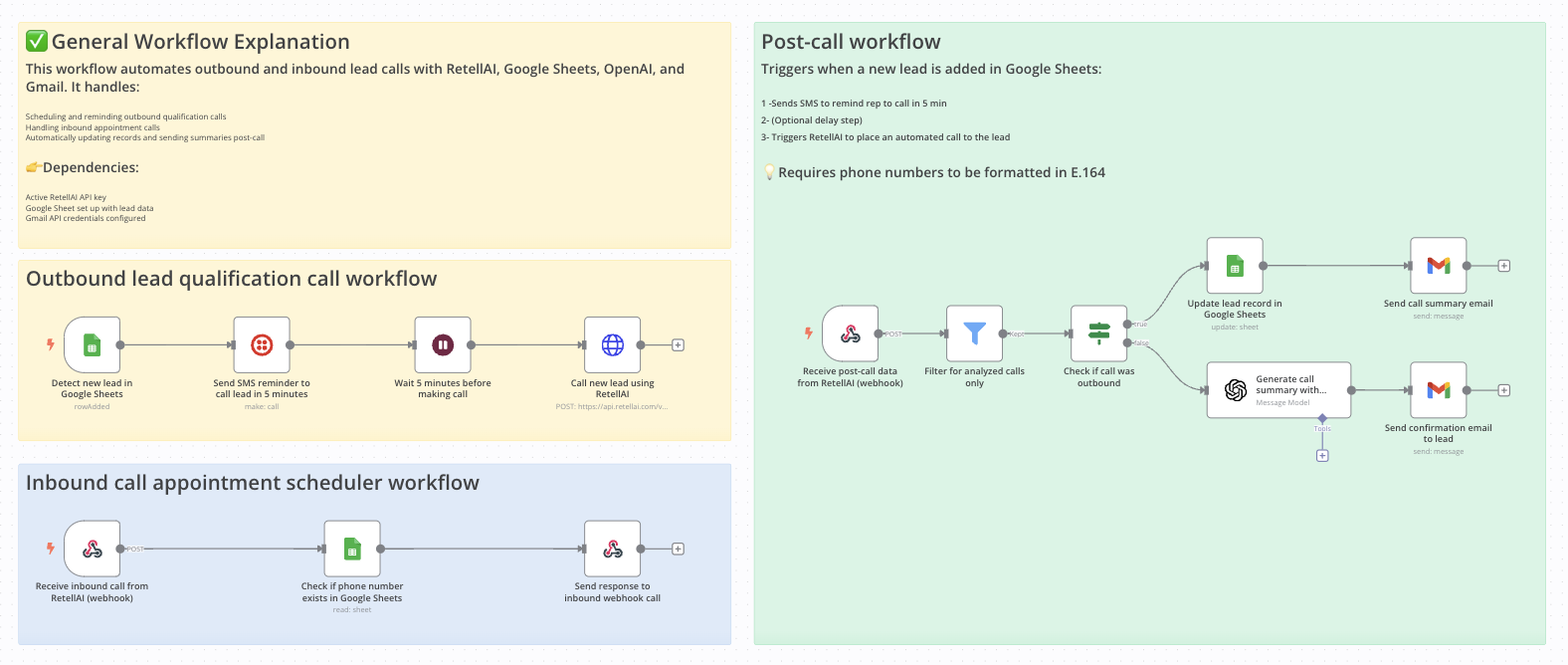
👉 Build a Phone Agent to qualify outbound leads and schedule inbound calls
Who is this for?
This workflow is designed for sales teams, call centers, and businesses handling both outbound and inbound lead calls who want to automate their qualification, follow-up, and call documentation process without manual intervention. It’s ideal for teams using Google Sheets, RetellAI, OpenAI, and Gmail as part of their tech stack.
Real-World Use Cases
- 🛍 E-commerce – Instantly handle product FAQs and order status checks, 24/7.
- 🏬 Retail Stores – Share store hours, directions, and return policies without lifting a finger.
- 🍽 Restaurants – Take reservations or answer menu questions automatically.
- 💼 Service Providers – Book appointments or consultations while you focus on your craft.
- 📞 Any Local Business – Deliver friendly, consistent phone support — no live agent required.
What problem is this workflow solving?
Managing lead calls at scale can be chaotic—between scheduling outbound qualification calls, handling inbound appointment requests, and making sure every call is documented and followed up. This workflow automates the entire process, reducing human error and saving time by:
- ✅ Sending reminders to reps for outbound calls
- ✅ Automatically placing calls with RetellAI
- ✅ Handling inbound calls and checking caller details
- ✅ Generating and emailing call summaries automatically
What this workflow does
This n8n template connects Google Sheets, RetellAI, OpenAI, and Gmail into a seamless workflow:
-
Outbound Lead Qualification Workflow
- Triggers when a new lead is added to Google Sheets
- Sends an SMS notification to remind the rep to call in 5 minutes
- (Optional) Waits 5 minutes
- Initiates an automated call to the lead via RetellAI
-
Inbound Call Appointment Scheduler
- Receives inbound calls from RetellAI (via webhook)
- Checks if the caller’s number exists in Google Sheets
- Responds to RetellAI with a success or error message
-
Post-Call Workflow
- Receives post-call data from RetellAI
- Filters only analyzed calls
- Updates the lead’s record in Google Sheets
- Uses OpenAI to generate a call summary
- Emails the summary to a team inbox or rep
Setup
✅ You need an active RetellAI API key
- Sign up for RetellAI, create an agent, and set the webhook URLs (n8n_call for call events).
- Purchase a Twilio phone number and link it to the agent.
✅ Your Google Sheet must have a column for phone numbers (e.g., “Phone”)
✅ Gmail account connected and authorized in n8n
✅ OpenAI API key added to your environment variables or credentials
- Configure your Google Sheets node with the correct spreadsheet ID and range
- Add your RetellAI API key to the HTTP request nodes
- Connect your Gmail account in the Gmail node
- Add your OpenAI key in the OpenAI node
👉 See full setup guide here: Notion Documentation
How to customize this workflow to your needs
- Change SMS content: Edit the text in the “Send SMS reminder” node to match your team’s tone
- Modify call wait time: Enable and adjust the “Wait 5 minutes” node to any delay you prefer
- Add CRM integration: Replace or extend the Google Sheets node to update your CRM instead of a spreadsheet
- Customize call summary prompts: Edit the prompt sent to OpenAI to change the summary style or add extra insights
- Send email to different recipients: Change the recipient address in the Gmail node or make it dynamic from the lead record
Need help customizing?
Contact me for consulting and support : Linkedin
🔗 Nodes Used
Google Sheets, HTTP Request, Twilio, Webhook, Gmail, Google Sheets Trigger
📥 Import
Download workflow.json and import into n8n:
Workflow menu → Import from File