🎣 Automated AI lead enrichment: Hubspot to Explorium for enhanced prospect data
⚡ 1,003 views · 🎣 Lead Generation & Enrichment
💡 Pro Tip — For lead enrichment, ScraperNode can pull LinkedIn profiles, company data, and job listings directly into your pipeline — useful for building prospect lists without manual research.

Description
HubSpot Contact Enrichment with Explorium
Template
Download the following json file and import it to a new n8n workflow:
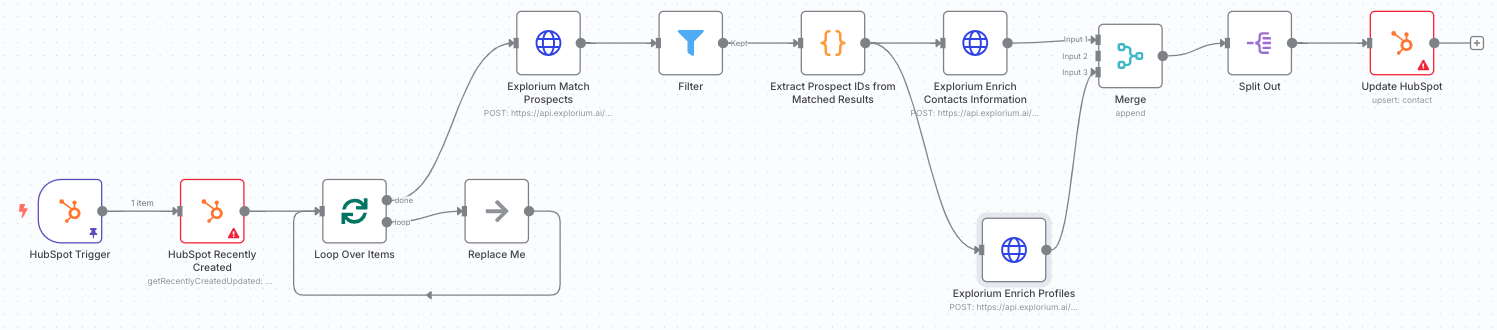
Overview
This n8n workflow monitors your HubSpot instance for newly created contacts and automatically enriches them with additional contact information. When a contact is created, the workflow:
- Detects the new contact via HubSpot webhook trigger
- Retrieves recent contact details from HubSpot
- Matches the contact against Explorium’s database using name, company, and email
- Enriches the contact with professional emails and phone numbers
- Updates the HubSpot contact record with discovered information
This automation ensures your sales and marketing teams have complete contact information, improving outreach success rates and data quality.
Key Features
- Real-time Webhook Trigger: Instantly processes new contacts as they’re created
- Intelligent Matching: Uses multiple data points (name, company, email) for accurate matching
- Comprehensive Enrichment: Adds both professional and work emails, plus phone numbers
- Batch Processing: Efficiently handles multiple contacts to optimize API usage
- Smart Data Mapping: Intelligently maps multiple emails and phone numbers
- Profile Enrichment: Optional additional enrichment for deeper contact insights
- Error Resilience: Continues processing other contacts if some fail to match
Prerequisites
Before setting up this workflow, ensure you have:
- n8n instance (self-hosted or cloud)
- HubSpot account with:
- Developer API access (for webhooks)
- Private App or OAuth2 app created
- Contact object permissions (read/write)
- Explorium API credentials (Bearer token) - Get explorium api key
- Understanding of HubSpot contact properties
HubSpot Requirements
Required Contact Properties
The workflow uses these HubSpot contact properties:
firstname- Contact’s first namelastname- Contact’s last namecompany- Associated company nameemail- Primary email (read and updated)work_email- Work email (updated by workflow)phone- Phone number (updated by workflow)
API Access Setup
-
Create a Private App in HubSpot:
- Navigate to Settings → Integrations → Private Apps
- Create new app with Contact read/write scopes
- Copy the Access Token
-
Set up Webhooks (for Developer API):
- Create app in HubSpot Developers portal
- Configure webhook for contact.creation events
- Note the App ID and Developer API Key
Custom Properties (Optional)
Consider creating custom properties for:
- Multiple email addresses
- Mobile vs. office phone numbers
- Data enrichment timestamps
- Match confidence scores
Installation & Setup
Step 1: Import the Workflow
- Copy the workflow JSON from the template
- In n8n: Navigate to Workflows → Add Workflow → Import from File
- Paste the JSON and click Import
Step 2: Configure HubSpot Developer API (Webhook)
- Click on the HubSpot Trigger node
- Under Credentials, click Create New
- Enter your HubSpot Developer credentials:
- App ID: From your HubSpot app
- Developer API Key: From your developer account
- Client Secret: From your app settings
- Save as “HubSpot Developer account”
Step 3: Configure HubSpot App Token
- Click on the HubSpot Recently Created node
- Under Credentials, click Create New (App Token)
- Enter your Private App access token
- Save as “HubSpot App Token account”
- Apply the same credentials to the Update HubSpot node
Step 4: Configure Explorium API Credentials
- Click on the Explorium Match Prospects node
- Under Credentials, click Create New (HTTP Header Auth)
- Configure the authentication:
- Name:
Authorization - Value:
Bearer YOUR_EXPLORIUM_API_TOKEN
- Name:
- Save as “Header Auth Connection”
- Apply to all Explorium nodes:
- Explorium Enrich Contacts Information
- Explorium Enrich Profiles
Step 5: Configure Webhook Subscription
- In HubSpot Developers portal:
- Go to your app’s webhook settings
- Add subscription for
contact.creationevents - Set the target URL from the HubSpot Trigger node
- Activate the subscription
Step 6: Activate the Workflow
- Save the workflow
- Toggle the Active switch to ON
- The webhook is now listening for new contacts
Node Descriptions
- HubSpot Trigger: Webhook that fires when new contacts are created
- HubSpot Recently Created: Fetches details of recently created contacts
- Loop Over Items: Processes contacts in batches of 6
- Explorium Match Prospects: Finds matching person in Explorium database
- Filter: Validates successful matches
- Extract Prospect IDs: Collects matched prospect identifiers
- Enrich Contacts Information: Fetches emails and phone numbers
- Enrich Profiles: Gets additional profile data (optional)
- Merge: Combines all enrichment results
- Split Out: Separates individual enriched records
- Update HubSpot: Updates contact with new information
Data Mapping Logic
The workflow maps Explorium data to HubSpot properties:
| Explorium Data | HubSpot Property | Notes |
|---|---|---|
professions_email | email | Primary professional email |
emails[].address | work_email | All email addresses joined |
phone_numbers[].phone_number | phone | All phones joined with commas |
mobile_phone | phone (fallback) | Used if no other phones found |
Data Processing
The workflow handles complex data scenarios:
- Multiple emails: Joins all discovered emails with commas
- Phone numbers: Combines all phone numbers into a single field
- Missing data: Uses “null” as placeholder for empty fields
- Name parsing: Cleans sample data and special characters
Usage & Operation
Automatic Processing
Once activated:
- Every new contact triggers the webhook immediately
- Contact is enriched within seconds
- HubSpot record is updated automatically
- Process repeats for each new contact
Manual Testing
To test the workflow:
- Use the pinned test data in the HubSpot Trigger node, or
- Create a test contact in HubSpot
- Monitor the execution in n8n
- Verify the contact was updated in HubSpot
Monitoring Performance
Track workflow health:
- Go to Executions in n8n
- Filter by this workflow
- Monitor success rates
- Review any failed executions
- Check webhook delivery in HubSpot
Troubleshooting
Common Issues
Webhook not triggering
- Verify webhook subscription is active in HubSpot
- Check the webhook URL is correct and accessible
- Ensure workflow is activated in n8n
- Test webhook delivery in HubSpot developers portal
Contacts not matching
- Verify contact has firstname, lastname, and company
- Check for typos or abbreviations in company names
- Some individuals may not be in Explorium’s database
- Email matching improves accuracy significantly
Updates failing in HubSpot
- Check API token has contact write permissions
- Verify property names exist in HubSpot
- Ensure rate limits haven’t been exceeded
- Check for validation rules on properties
Missing enrichment data
- Not all prospects have all data types
- Phone numbers may be less available than emails
- Profile enrichment is optional and may not always return data
Error Handling
Built-in error resilience:
- Failed matches don’t block other contacts
- Each batch processes independently
- Partial enrichment is possible
- All errors are logged for review
Debugging Tips
- Check webhook logs: HubSpot shows delivery attempts
- Review executions: n8n logs show detailed error messages
- Test with pinned data: Use the sample data for isolated testing
- Verify API responses: Check Explorium API returns expected data
Best Practices
Data Quality
- Complete contact records: Ensure name and company are populated
- Standardize company names: Use official names, not abbreviations
- Include existing emails: Improves match accuracy
- Regular data hygiene: Clean up test and invalid contacts
Performance Optimization
- Batch size: 6 is optimal for rate limits
- Webhook reliability: Monitor delivery success
- API quotas: Track usage in both platforms
- Execution history: Regularly clean old executions
Compliance & Privacy
- GDPR compliance: Ensure lawful basis for enrichment
- Data minimization: Only enrich necessary fields
- Access controls: Limit who can modify enriched data
- Audit trail: Document enrichment for compliance
Customization Options
Additional Enrichment
Extend with more Explorium data:
- Job titles and departments
- Social media profiles
- Professional experience
- Skills and interests
- Company information
Enhanced Processing
Add workflow logic for:
- Lead scoring based on enrichment
- Routing based on data quality
- Notifications for high-value matches
- Custom field mapping
Integration Extensions
Connect to other systems:
- Sync enriched data to CRM
- Trigger marketing automation
- Update data warehouse
- Send notifications to Slack
API Considerations
HubSpot Limits
- API calls: Monitor daily limits
- Webhook payload: Max 200 contacts per trigger
- Rate limits: 100 requests per 10 seconds
- Property limits: Max 1000 custom properties
Explorium Limits
- Match API: Batched for efficiency
- Enrichment calls: Two parallel enrichments
- Rate limits: Based on your plan
- Data freshness: Real-time matching
Architecture Considerations
This workflow integrates with:
- HubSpot workflows and automation
- Marketing campaigns and sequences
- Sales engagement tools
- Reporting and analytics
- Other enrichment services
Security Best Practices
- Webhook validation: Verify requests are from HubSpot
- Token security: Rotate API tokens regularly
- Access control: Limit workflow modifications
- Data encryption: All API calls use HTTPS
- Audit logging: Track all enrichments
Advanced Configuration
Custom Field Mapping
Modify the Update HubSpot node to map to custom properties:
// Example custom mapping
{
  "custom_mobile": "{{ $json.data.mobile_phone }}",
  "custom_linkedin": "{{ $json.data.linkedin_url }}",
  "enrichment_date": "{{ $now.toISO() }}"
}
Conditional Processing
Add logic to process only certain contacts:
- Filter by contact source
- Check for specific properties
- Validate email domains
- Exclude test contacts
Support Resources
For assistance:
- n8n issues: Check n8n documentation and forums
- HubSpot API: Reference HubSpot developers documentation
- Explorium API: Contact Explorium support
- Webhook issues: Use HubSpot webhook testing tools
🔗 Nodes Used
HubSpot, HubSpot Trigger, Filter
📥 Import
Download workflow.json and import into n8n:
Workflow menu → Import from File