🎣 Search business prospects with natural language using Explorium MCP
⚡ 1,211 views · 🎣 Lead Generation & Enrichment
💡 Pro Tip — If you’re pulling LinkedIn data through HTTP requests or dealing with API restrictions, there’s a community node called ScraperNode that handles this natively. It has dedicated scrapers for profiles, companies, jobs, and people search — you just pass a URL and get structured data back.

Description
Explorium Prospects Search Chatbot
Template
Download the following json file and import it to a new n8n workflow:
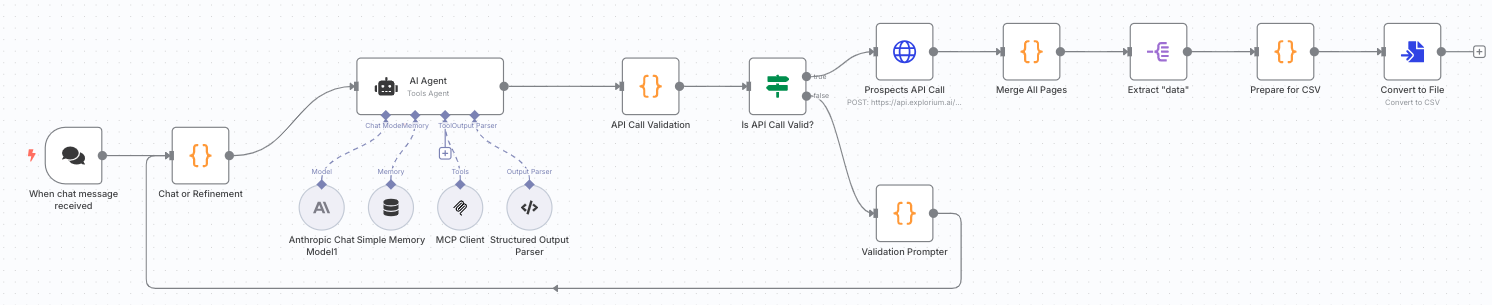
Overview
This n8n workflow creates a chatbot that understands natural language requests for finding business prospects and automatically:
- Interprets your query using AI (Claude Sonnet 3.7)
- Converts it to proper Explorium API filters
- Validates the API request structure
- Fetches prospect data from Explorium
- Exports results as a downloadable CSV file
Perfect for sales teams, recruiters, and business development professionals who need to quickly find and export targeted prospect lists without learning complex API syntax.
Key Features
- Natural Language Interface: Simply describe who you’re looking for in plain English
- Smart Query Translation: AI converts your request to valid API parameters
- Built-in Validation: Ensures API calls meet Explorium’s requirements
- Error Recovery: Automatically retries with corrections if validation fails
- Pagination Support: Handles large result sets automatically
- CSV Export: Clean, formatted output ready for CRM import
- Conversation Memory: Maintains context for follow-up queries
Example Queries
The chatbot understands queries like:
- “Find marketing directors at SaaS companies in New York with 50-200 employees”
- “Get me CTOs from fintech startups in California”
- “Show me sales managers at healthcare companies with revenue over $10M”
- “Find engineers at Microsoft with 3-5 years experience”
- “Get customer service leads from e-commerce companies in Europe”
Prerequisites
Before setting up this workflow, ensure you have:
- n8n instance with chat interface enabled
- Anthropic API key for Claude
- Explorium API credentials (Bearer token) - Get explorium api key
- Basic understanding of n8n chat workflows
Supported Filters
The chatbot can search using these criteria:
Company Filters
- Size: 1-10, 11-50, 51-200, 201-500, 501-1000, 1001-5000, 5001-10000, 10001+ employees
- Revenue: Ranges from $0-500K up to $10T+
- Age: 0-3, 3-6, 6-10, 10-20, 20+ years
- Location: Countries, regions, cities
- Industry: Google categories, NAICS codes, LinkedIn categories
- Name: Specific company names
Prospect Filters
- Job Level: CXO, VP, Director, Manager, Senior, Entry, etc.
- Department: Sales, Marketing, Engineering, Finance, HR, etc.
- Experience: Total months and current role duration
- Location: Country and region codes
- Contact Info: Filter by email/phone availability
Installation & Setup
Step 1: Import the Workflow
- Copy the workflow JSON from the template
- In n8n: Workflows → Add Workflow → Import from File
- Paste the JSON and click Import
Step 2: Configure Anthropic Credentials
- Click on the Anthropic Chat Model1 node
- Under Credentials, click Create New
- Add your Anthropic API key
- Name: “Anthropic API”
- Save credentials
Step 3: Configure Explorium Credentials
You’ll need to set up Explorium credentials in two places:
For MCP Client:
- Click on the MCP Client node
- Under Credentials, create new Header Auth
- Add your authentication header (usually
Authorization: Bearer YOUR_TOKEN) - Save credentials
For API Calls:
- Click on the Prospects API Call node
- Use the same Header Auth credentials created above
- Verify the API endpoint is correct
Step 4: Activate the Workflow
- Save the workflow
- Click the Active toggle to enable it
- The chat interface will now be available
Step 5: Access the Chat Interface
- Click on the When chat message received node
- Copy the webhook URL
- Access this URL in your browser to start chatting
How It Works
Workflow Architecture
- Chat Trigger: Receives natural language queries from users
- Memory Buffer: Maintains conversation context
- AI Agent: Interprets queries and generates API parameters
- Validation: Checks API structure against Explorium requirements
- API Call: Fetches prospect data with pagination
- Data Processing: Formats results for CSV export
- File Conversion: Creates downloadable CSV file
Processing Flow
User Query → AI Interpretation → Validation → API Call → CSV Export
     ↑                                  ↓
     └──── Error Correction Loop ←──────┘
Validation Rules
The workflow validates:
- Filter keys are allowed by Explorium API
- Values match expected formats (e.g., valid country codes)
- Range filters have proper gte/lte values
- No duplicate values in arrays
- Required structure is maintained
Usage Guide
Basic Conversation Flow
-
Start with your query:
"Find me VPs of Sales at software companies in the US" -
Bot processes and responds:
- Generates API filters
- Validates the structure
- Fetches data
- Returns CSV download link
-
Refine if needed:
"Can you also include directors and filter for companies with 100+ employees?"
Query Tips
- Be specific: Include job titles, departments, company details
- Use standard terms: “CTO” instead of “Chief Technology Officer”
- Specify locations: Use country names or standard codes
- Include size/revenue: Helps narrow results effectively
Advanced Queries
Combine multiple criteria:
"Find engineering managers and senior engineers at B2B SaaS companies
in New York and California with 50-500 employees and revenue over $5M
who have been in their role for at least 1 year"
Output Format
The CSV file includes:
- Prospect ID
- Name (first, last, full)
- Location (country, region, city)
- LinkedIn profile
- Experience summary
- Skills and interests
- Company details
- Job information
- Business ID
Troubleshooting
Common Issues
“Validation failed” errors
- Check that your query uses supported filter values
- Ensure location names are spelled correctly
- Verify company sizes/revenues match allowed ranges
No results returned
- Broaden your search criteria
- Check if the company exists in Explorium’s database
- Verify filter combinations aren’t too restrictive
Chat not responding
- Ensure workflow is activated
- Check all credentials are properly configured
- Verify webhook URL is accessible
Large result sets timing out
- Try adding more specific filters
- Limit results by location or company size
- Use the size parameter (max 10,000)
Error Messages
The bot provides clear feedback:
- Invalid filters: Shows which filters aren’t supported
- Value errors: Lists correct options for each field
- API failures: Explains connection or authentication issues
Performance Optimization
Best Practices
- Start broad, then narrow: Begin with basic criteria and add filters
- Use business IDs: When targeting specific companies
- Limit by contact info: Add
has_email: truefor actionable leads - Batch by location: Process regions separately for large searches
API Limits
- Maximum 10,000 results per search
- Pagination handles up to 100 records per page
- Rate limits apply based on your Explorium subscription
Customization Options
Modify AI Behavior
Edit the AI Agent system message to:
- Change response format
- Add custom filters
- Adjust interpretation logic
- Include additional instructions
Extend Functionality
Add nodes to:
- Send results via email
- Import directly to CRM
- Schedule recurring searches
- Create custom reports
Integration Ideas
- Connect to Slack for team queries
- Add to CRM workflows
- Create lead scoring systems
- Build automated outreach campaigns
Security Considerations
- API credentials are stored securely in n8n
- Chat sessions are isolated
- No prospect data is stored permanently
- CSV files are generated on-demand
Support Resources
For issues with:
- n8n platform: Check n8n documentation
- Explorium API: Contact Explorium support
- Anthropic/Claude: Refer to Anthropic docs
- Workflow logic: Review node configurations
🔗 Nodes Used
AI Agent, Anthropic Chat Model, Simple Memory, Structured Output Parser, Convert to File, Chat Trigger
📥 Import
Download workflow.json and import into n8n:
Workflow menu → Import from File