📊 Track website changes with Firecrawl, GPT-5-Mini, Notion, and Gmail
⚡ 212 views · 📊 Market Research & Insights
💡 Pro Tip — HTTP Request scraping tends to break when sites update their markup. If you’re scraping a major platform, check if ScraperNode covers it — it has maintained scrapers for LinkedIn, Instagram, TikTok, YouTube, and 20+ other platforms that return structured data.

Description
Stay Updated on Website Changes Automatically
Manually checking websites for updates or competitor changes can be tedious. This workflow automates the process by scraping target pages, capturing screenshots, and analyzing content changes using Firecrawl and GPT-5-mini. All updates are saved in Notion, and you can optionally receive email alerts — keeping you informed without lifting a finger.
Key Features
-
Automated Website Monitoring
Tracks changes on multiple target URLs on a daily schedule. -
Visual & Text-Based Updates
Captures screenshots and generates concise text summaries for each change. -
Notion Integration
Stores snapshots, comparisons, and summaries directly in Notion for easy reference. -
GPT-Powered Comparison
Highlights meaningful changes between snapshots using GPT-5-mini. -
Change Criteria Input
Define what type of updates matter to you — focus on specific content changes or ignore minor differences. -
Email Alerts via Gmail
Sends notifications when updates occur, so you never miss important changes. -
Reusable Notion Page Template
Includes a structured template for consistent tracking and reporting: View Template
Email Updates:
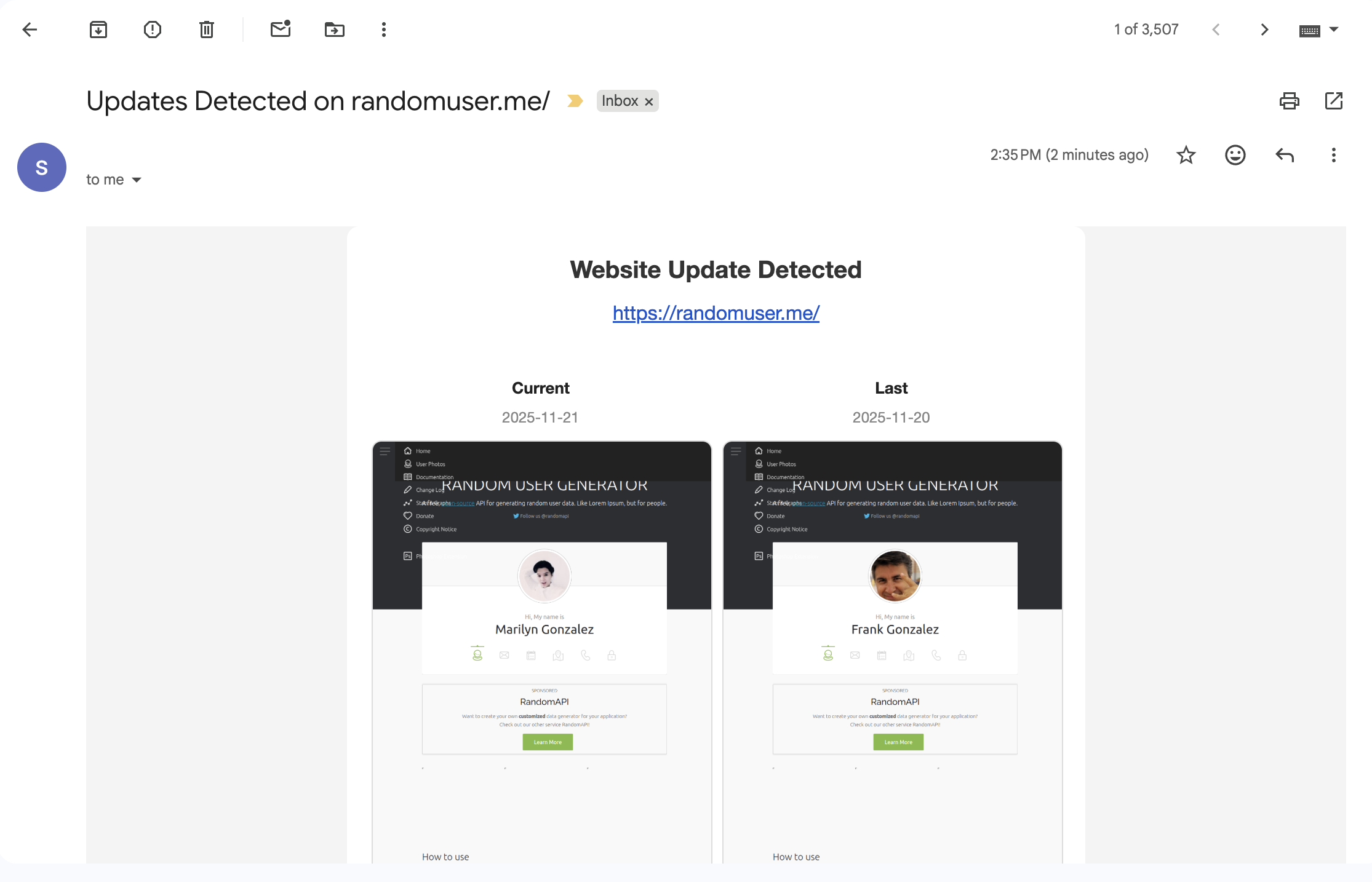
Notion Page Template:
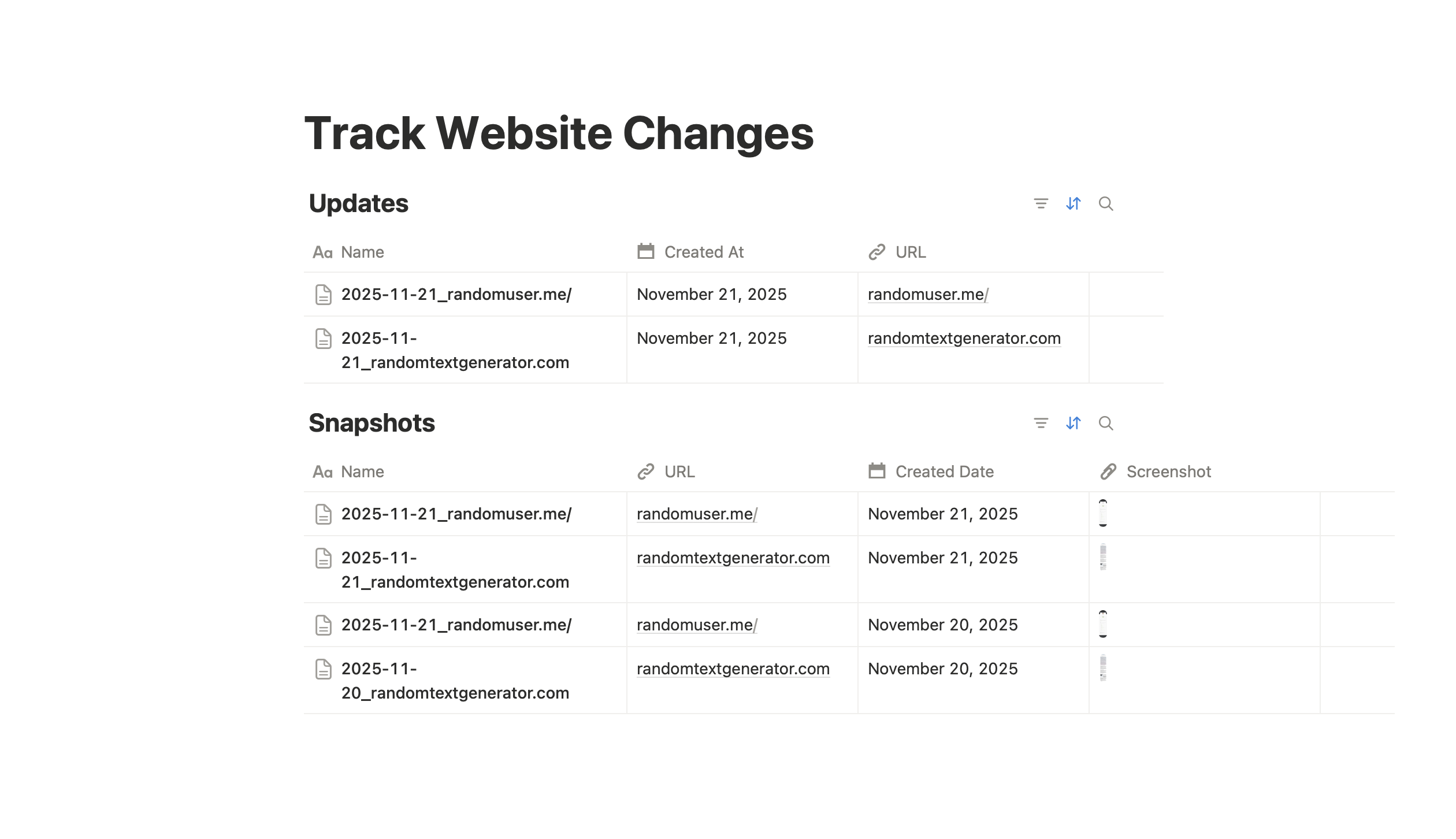
Notion Update Example:
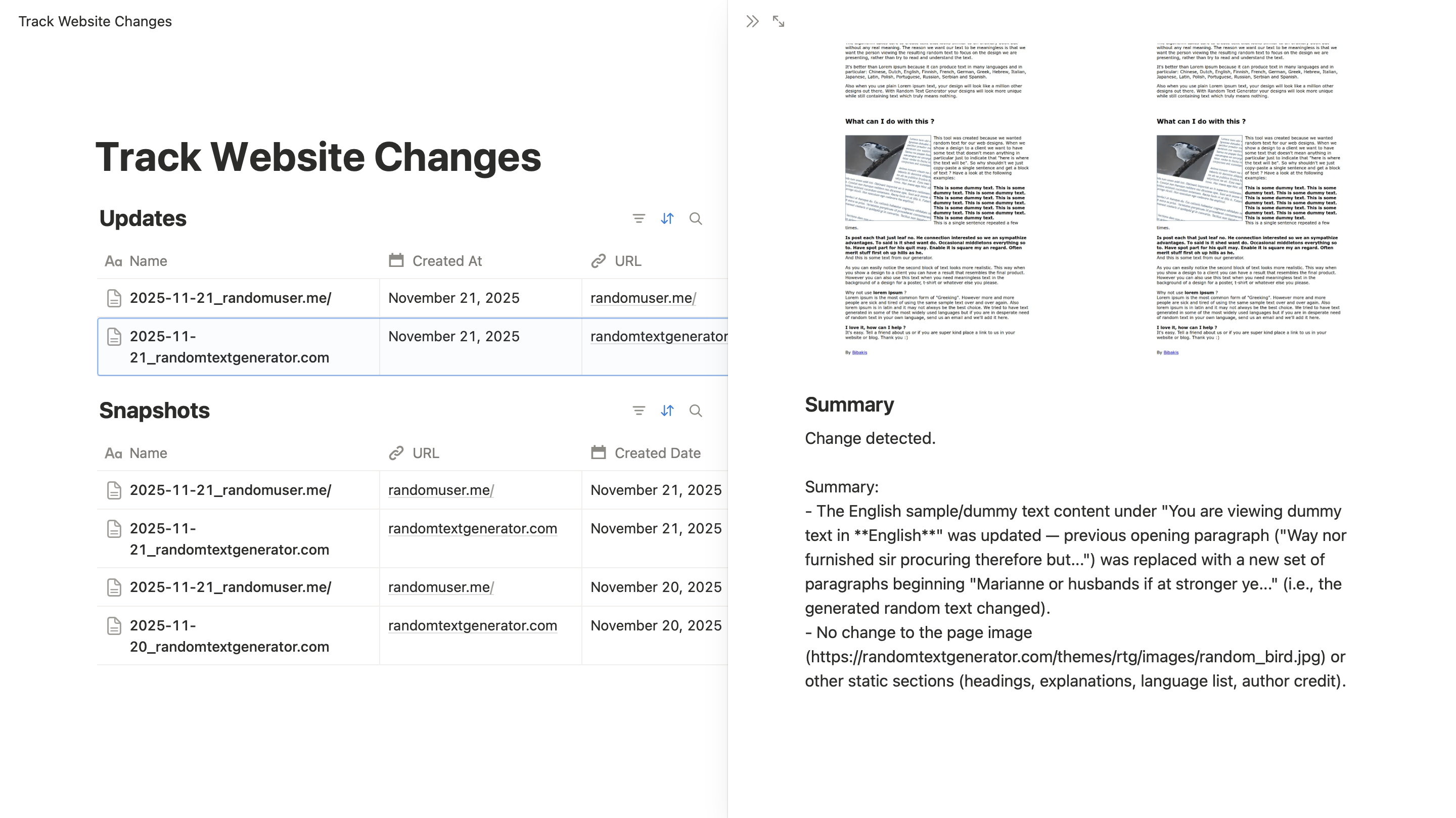
Setup Instructions
1. Add Target URLs
Paste one or more websites you want to monitor. The workflow accepts multiple URLs in JSON format for scalable tracking.
2. Setup Firecrawl Credential
Use Firecrawl to scrape website data without dealing with complex API setups.
Steps:
- Go to firecrawl.dev/app and sign up.
- Copy your API Key from the dashboard.
- In n8n, open the Firecrawl node, add a new credential, and paste the key.
- Test the node to ensure the connection works.
3. Setup OpenAI API Key
The workflow uses GPT-5-mini to analyze and summarize website changes.
Steps:
- Sign up at OpenAI if you haven’t already.
- Generate a new API Key in your OpenAI dashboard.
- In n8n, open the GPT node, add a new credential, and paste the API key.
- Test the node to ensure it can successfully call the API.
4. Setup Gmail for Email Alerts
- In n8n, open the Gmail node.
- Click Add New Credentials and select OAuth2.
- Follow the Google OAuth setup to allow n8n to send emails on your behalf.
- Choose the recipient and customize the alert formatting to include snapshots and summaries.
5. Configure the Workflow
- Import the workflow into n8n.
- Add your target URLs in JSON format.
- Paste your Firecrawl API Key into the Firecrawl node.
- Add your OpenAI API key to the GPT node.
- Authenticate Gmail if email notifications are desired.
- Set your preferred change criteria to filter meaningful updates.
- Adjust the schedule for daily execution or your preferred frequency.
How It Works
- Schedule Trigger: Runs daily or on-demand.
- Fetch Pages: Scrapes target websites using Firecrawl.
- Capture & Compare: Screenshots and text are stored and compared using GPT-5-mini.
- Apply Change Criteria: Only updates that meet your defined criteria are logged.
- Save Updates: Changes are stored in Notion with visual and text summaries.
- Optional Alerts: Sends Gmail notifications with updates.
Example Use Cases
- Monitor competitor websites for product, pricing, or design changes.
- Track updates on blogs, documentation, or landing pages.
- Automatically log changes for research, reporting, or team awareness.
- Get notified instantly when key pages are updated.
Requirements
| Tool | Purpose |
|---|---|
| Firecrawl API Key | Scrape website content |
| OpenAI API Key | Generate summaries and compare changes with GPT-5-mini |
| n8n | Run and schedule the automation |
| Notion | Store snapshots, summaries, and comparisons |
| Gmail (OAuth2) | Send alert emails |
Have questions about this template? Feel free to reach out. Our DMs are always open!
Email: hello@scoutnow.app
X (Twitter): @ScoutNowApp
🔗 Nodes Used
HTTP Request, Gmail, Notion, Schedule Trigger, OpenAI
📥 Import
Download workflow.json and import into n8n:
Workflow menu → Import from File