📊 YouTube comment sentiment analysis with Google Gemini AI and Google Sheets
⚡ 690 views · 📊 Market Research & Insights
💡 Pro Tip — Since TikTok doesn’t have a public API, getting data usually means fragile HTTP scraping. ScraperNode is a community node that gives you clean JSON for TikTok profiles, videos, and comments — drop it into your workflow and skip the parsing.

Description
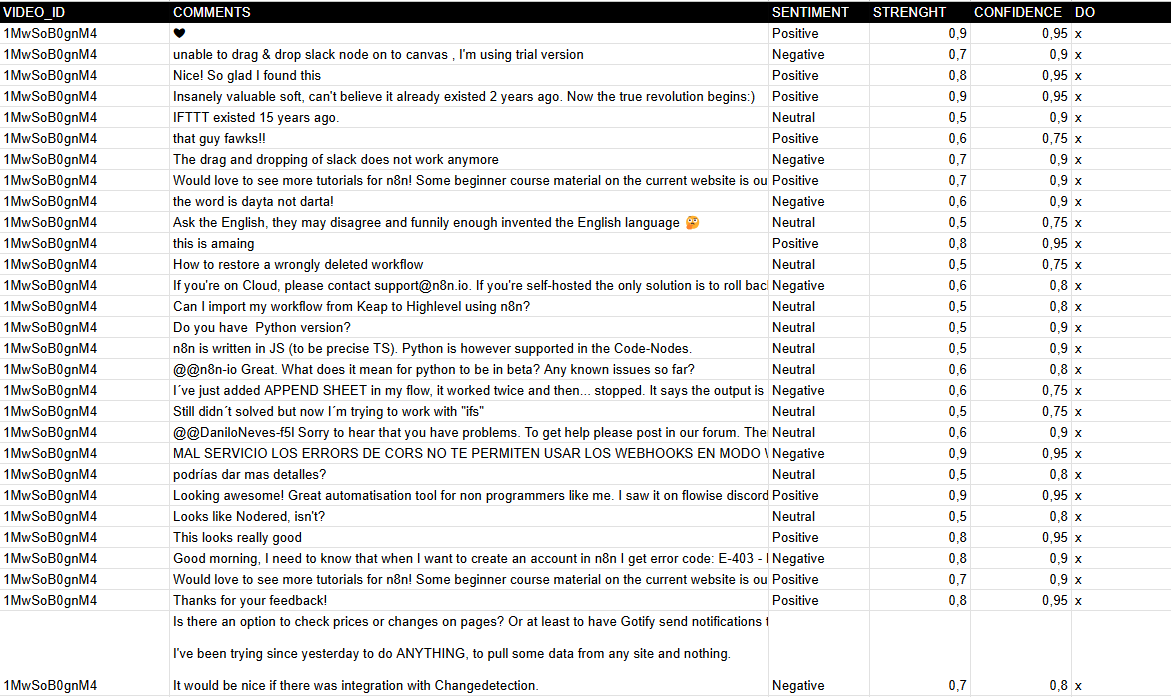
This workflow automatically collects all comments from a specified YouTube video and analyzes the sentiment of each comment using an AI model (e.g., GPT, Claude or Gemini). The sentiment (Positive, Neutral, or Negative), its strength, and confidence score are extracted and saved into a connected Google Sheet for easy access, reporting, and visualization.
Advantages:
🧠 AI-Powered Sentiment Analysis
- Uses modern language models (LLMs) to categorize comments with high accuracy.
📺 Ideal for YouTube Creators & Marketers
- Provides insights into audience perception of videos, campaigns, or products.
📈 Real-Time Feedback Monitoring
- Quickly identify trends in viewer sentiment across large comment volumes.
📊 Automatic Reporting
- Saves results in Google Sheets for easy sharing or dashboard integration.
🔁 Handles Pagination
- Automatically fetches all comments, even from multi-page videos.
⚙️ No-Code Customization
- Easily adaptable to other platforms (e.g., TikTok, Instagram) or data sources.
📥 Simple Setup
- Requires just a YouTube video ID and API key — no coding needed.
🔁 Loop and Update Logic
- Continuously updates sheet with new results, avoiding duplicate processing.
🧩 Modular Design
- Easy to expand (e.g., reply classification, toxic comment detection, translation).
💬 Multi-Language Compatibility
- AI can be configured to analyze comments in different languages with minimal setup.
How It Works
- Trigger: The workflow starts manually (“When clicking ‘Test workflow’”) or can be scheduled.
- Fetch Comments: The “Get API Comments” node retrieves comments from a YouTube video using the YouTube API.
- Process Comments:
- Extracts comments and replies via the “Comments” node.
- Splits them into individual entries (“Split comments”).
- Saves raw comments to Google Sheets (“Save comments”).
- Sentiment Analysis:
- Uses Google Gemini AI (or another model) to classify each comment as Positive, Neutral, or Negative.
- Captures strength and confidence metrics for deeper insights.
- Update Results: The “Update sentiment” node writes the analysis back to Google Sheets, marking processed rows.
- Pagination Handling: Checks for multiple pages of comments (“Multipage?”) and loops until all are processed.
Set Up Steps
-
Prepare Google Sheet:
- Clone the template: YouTube Comments Sheet.
- Ensure columns exist:
VIDEO_ID,COMMENTS,SENTIMENT,STRENGTH,CONFIDENCE, andDO(tracking column).
-
Configure YouTube API:
- Obtain a YouTube API key from Google Developers Console.
- Add it to the “Get API Comments” node under Youtube Query Auth (parameter:
key).
-
Set Video ID:
- Replace the default
xxxxxxxxin the “ID Video” node with your target YouTube video ID.
- Replace the default
-
AI Integration:
- Ensure Google Gemini API credentials are configured in the “Google Gemini” node.
-
Run the Workflow:
- Test manually or automate execution (e.g., hourly/daily) to analyze new comments.
Output: A Google Sheet with categorized sentiments, enabling trend analysis and audience engagement tracking.
Need help customizing?
Contact me for consulting and support or add me on Linkedin.
🔗 Nodes Used
Google Sheets, HTTP Request, QuickChart, Google Gemini Chat Model, Sentiment Analysis
📥 Import
Download workflow.json and import into n8n:
Workflow menu → Import from File