💬 Send AI-personalized LinkedIn connection requests from Google Sheets with Gemini
⚡ 186 views · 💬 Lead Nurturing & AI Sales Agents
💡 Pro Tip — If you’re pulling LinkedIn data through HTTP requests or dealing with API restrictions, there’s a community node called ScraperNode that handles this natively. It has dedicated scrapers for profiles, companies, jobs, and people search — you just pass a URL and get structured data back.

Description
Send AI-personalized LinkedIn connection requests from Google Sheets using ConnectSafely.AI API
Who’s it for
This workflow is built for sales professionals, recruiters, founders, and growth marketers who want to scale their LinkedIn outreach without sacrificing personalization. Perfect for anyone tired of sending generic connection requests that get ignored, or manually crafting individual messages for hundreds of prospects.
If you’re running ABM campaigns, building a sales pipeline, recruiting talent, or expanding your professional network, this automation handles the heavy lifting while keeping your outreach authentic and human.
How it works
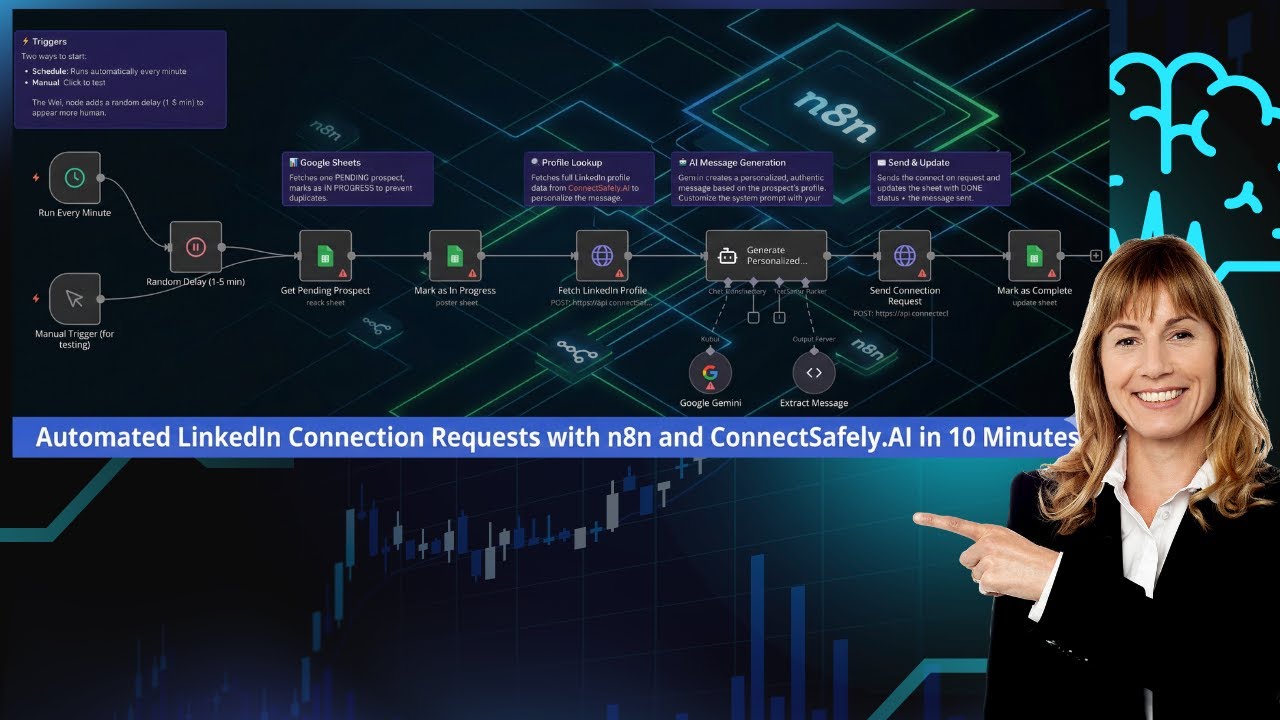
The workflow automates personalized LinkedIn connection requests by combining Google Sheets prospect tracking with AI-powered message generation through ConnectSafely.ai’s API.
The process flow:
- Reads pending prospects from your Google Sheet
- Immediately marks them “IN PROGRESS” to prevent duplicate sends
- Fetches complete LinkedIn profile data via ConnectSafely.ai API
- Generates a personalized, authentic message using Google Gemini AI
- Sends the connection request with your custom message
- Updates your sheet with “DONE” status and stores the message sent
Random delays between requests mimic human behavior and maintain LinkedIn compliance.
Watch the complete step-by-step implementation guide:
Setup steps
Step 1: Prepare Your Google Sheet
Structure your Google Sheet with the following columns:
| Column Name | Description | Required |
|---|---|---|
First Name | Contact’s first name | Optional |
LinkedIn Url | LinkedIn profile URL or username | Yes |
Tagline | Contact’s headline/title | Optional |
Status | Processing status (PENDING/IN PROGRESS/DONE) | Yes |
Message | Stores the AI-generated message sent | Yes |
Sample Data Format:
First Name: John
LinkedIn Url: https://www.linkedin.com/in/johndoe
Tagline: VP of Sales at TechCorp
Status: PENDING
Message: (left empty - will be filled by workflow)
Pro Tip: Use LinkedIn Sales Navigator export or a prospecting tool to populate your sheet with qualified leads.
Step 2: Configure ConnectSafely.ai API Credentials
Obtain API Key
- Log into ConnectSafely.ai Dashboard
- Navigate to Settings → API Keys
- Generate a new API key
Add Bearer Auth Credential in n8n
- Go to Credentials in n8n
- Click Add Credential → Header Auth or Bearer Auth
- Paste your ConnectSafely.ai API key
- Save the credential
This credential is used by both the “Fetch LinkedIn Profile” and “Send Connection Request” HTTP nodes.
Step 3: Configure Google Sheets Integration
3.1 Connect Google Sheets Account
- Go to Credentials → Add Credential → Google Sheets OAuth2
- Follow the OAuth flow to connect your Google account
- Grant access to Google Sheets
3.2 Configure “Get Pending Prospect” Node
- Open the Get Pending Prospect node
- Select your Google Sheets credential
- Enter your Document ID (from the sheet URL)
- Select the Sheet Name
- Add a filter:
- Lookup Column:
Status - Lookup Value:
PENDING
- Lookup Column:
- Enable Return First Match Only under Options
3.3 Configure “Mark as In Progress” Node
- Open the Mark as In Progress node
- Select the same document and sheet
- Configure column mapping:
- Matching Column:
row_number - Status:
IN PROGRESS
- Matching Column:
3.4 Configure “Mark as Complete” Node
- Open the Mark as Complete node
- Select the same document and sheet
- Configure column mapping:
- Matching Column:
row_number - Status:
DONE - Message:
{{ $('Generate Personalized Message').item.json.message }}
- Matching Column:
Step 4: Configure Google Gemini AI
Get Gemini API Key
- Go to Google AI Studio
- Create or select a project
- Generate an API key
Add Gemini Credential in n8n
- Go to Credentials → Add Credential → Google Gemini (PaLM) API
- Paste your API key
- Save the credential
Connect to Google Gemini Node
- Open the Google Gemini node
- Select your Gemini credential
Step 5: Customize the AI Prompt
The Generate Personalized Message node contains the system prompt that controls how messages are written. Customize it for your personal brand:
- Open the Generate Personalized Message node
- Find the System Message in Options
- Replace the placeholder text:
MY CONTEXT:
[CUSTOMIZE THIS: Add your name, role, and what you're looking for in connections]
With your actual information, for example:
MY CONTEXT:
I'm Sarah, founder of a B2B SaaS startup. I'm interested in connecting with other founders, VCs, and sales leaders to exchange ideas and explore potential partnerships.- Update the sign-off instruction from
"- [YOUR NAME]"to your actual name
Step 6: Test the Workflow
- Add a test prospect to your Google Sheet with
Status: PENDING - Click the Manual Trigger (for testing) node
- Click Test Workflow
- Verify:
- Profile data is fetched correctly
- AI generates an appropriate message
- Connection request is sent
- Sheet updates to
DONEwith the message stored
Customization
Message Personalization
Edit the system prompt in the Generate Personalized Message node to adjust:
- Tone: Formal, casual, or industry-specific language
- Length: Modify character limits (LinkedIn allows up to 300 characters)
- Focus: Emphasize mutual connections, shared interests, or achievements
- Sign-off: Change the signature format to match your brand
Timing Adjustments
- Schedule Trigger: Currently set to run every minute. Adjust the interval in the Run Every Minute node
- Random Delay: The Random Delay (1-5 min) node adds 1-5 minutes of random wait time. Modify the formula
{{ Math.floor(Math.random() * 4) + 1 }}to change the range
Rate Limiting Best Practices
- Start with 10-20 connection requests per day
- Gradually increase over 2-3 weeks
- Never exceed 100 requests per day
- Consider pausing on weekends
Use Cases
- Sales Prospecting: Connect with decision-makers at target accounts with personalized outreach
- Recruiting: Reach out to passive candidates with messages that reference their specific experience
- Founder Networking: Build relationships with fellow entrepreneurs, investors, and advisors
- Event Follow-up: Send personalized connection requests to conference attendees and speakers
- Partnership Development: Connect with potential partners by referencing their company achievements
Troubleshooting
Common Issues & Solutions
Issue: AI generating messages over 300 characters
- Solution: Add explicit character count requirement in the system prompt; the current prompt specifies 200-250 characters
Issue: “Profile not found” errors from ConnectSafely.ai
- Solution: Ensure LinkedIn URLs are complete (include
https://www.linkedin.com/in/)
Issue: Generic-sounding AI messages
- Solution: Enhance the system prompt with more specific context about your background and goals
Issue: Duplicate connection requests sent
- Solution: Verify “Mark as In Progress” node runs before “Fetch LinkedIn Profile”; check that
row_numbercolumn exists in your sheet
Issue: Google Sheets not updating
- Solution: Confirm
row_numbercolumn exists and the matching column is correctly configured
Issue: Bearer Auth errors
- Solution: Verify your ConnectSafely.ai API key is valid and has proper permissions
Documentation & Resources
Official Documentation
- ConnectSafely.ai Docs: https://connectsafely.ai/docs
- API Reference: Available in ConnectSafely.ai dashboard
- Google Gemini API: https://ai.google.dev/docs
Support Channels
- Email Support: support@connectsafely.ai
- Documentation: https://connectsafely.ai/docs
- Custom Workflows: Contact us for custom automation
Connect With Us
Stay updated with the latest automation tips, LinkedIn strategies, and platform updates:
- LinkedIn: linkedin.com/company/connectsafelyai
- YouTube: youtube.com/@ConnectSafelyAI-v2x
- Instagram: instagram.com/connectsafely.ai
- Facebook: facebook.com/connectsafelyai
- X (Twitter): x.com/AiConnectsafely
- Bluesky: connectsafelyai.bsky.social
- Mastodon: mastodon.social/@connectsafely
Need Custom Workflows?
Looking to build sophisticated LinkedIn automation workflows tailored to your business needs?
Contact our team for custom automation development, strategy consulting, and enterprise solutions.
We specialize in:
- Multi-channel engagement workflows
- AI-powered personalization at scale
- Lead scoring and qualification automation
- CRM integration and data synchronization
- Custom reporting and analytics pipelines
🔗 Nodes Used
Google Sheets, HTTP Request, Schedule Trigger, AI Agent, Structured Output Parser, Google Gemini Chat Model
📥 Import
Download workflow.json and import into n8n:
Workflow menu → Import from File