⚡ Track personal finances in Google Sheets with AI agent via Slack
⚡ 656 views · ⚡ Personal Productivity
Description
Who’s it for
This workflow is perfect for individuals who want to maintain detailed financial records without the overhead of complex budgeting apps. If you prefer natural language over data entry forms and want an AI assistant to handle the bookkeeping, this template is for you. It’s especially useful for:
- People who want to track cash and online transactions separately
- Anyone who lends money to friends/family and needs debt tracking
- Users comfortable with Slack as their primary interface
- Those who prefer conversational interactions over manual spreadsheet updates
What it does
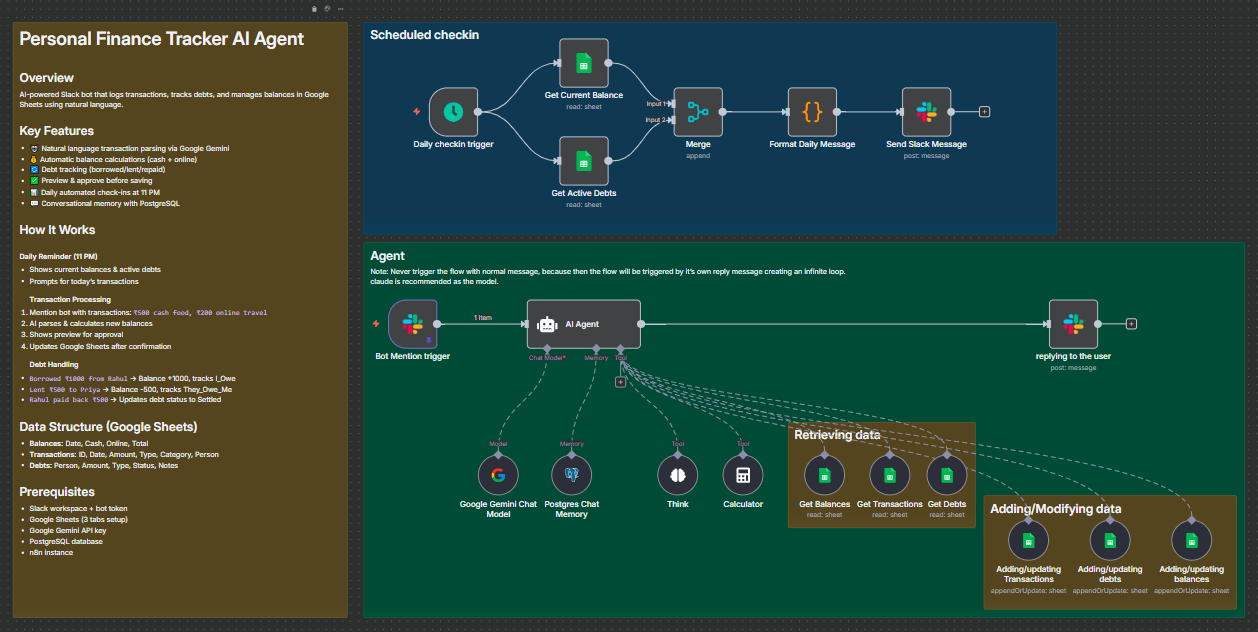
This AI-powered finance tracker transforms your Slack workspace into a personal finance command center. Simply mention your bot with transactions in plain English (e.g., “₹500 cash food, borrowed ₹1000 from John”), and the AI agent will:
- Parse transactions using natural language understanding via Google Gemini
- Calculate balance changes for cash and online accounts
- Show a preview of changes before saving anything
- Update Google Sheets only after you approve
- Track debts (who owes you, who you owe, repayments)
- Send daily reminders at 11 PM with current balances and active debts
The workflow maintains conversational context using PostgreSQL memory, so you can say things like “yesterday’s transactions” or “that payment to Sarah” and it understands the context.
How it works
Scheduled Daily Check-in (11 PM)
- Fetches current balances from Google Sheets
- Retrieves all active debts
- Formats and sends a Slack message with balance summary
- Prompts you to share the day’s transactions
AI Agent Transaction Processing
When you mention the bot in Slack:
Phase 1: Parse & Analyze
- Extracts amount, payment type (cash/online), category (food, travel, etc.)
- Identifies transaction type (expense, income, borrowed, lent, repaid)
- Stores conversation context in PostgreSQL memory
Phase 2: Calculate & Preview
- Reads current balances from Google Sheets
- Calculates new balances based on transactions
- Shows formatted preview with projected changes
- Waits for your approval (“yes”/“no”)
Phase 3: Update Database (only after approval)
- Logs transactions with unique IDs and timestamps
- Updates debt records with person names and status
- Recalculates and stores new balances
- Handles debt lifecycle (Active → Settled)
Phase 4: Confirmation
- Sends success message with updated balances
- Shows active debts summary
- Includes logging timestamp
Requirements
Essential Services:
- n8n instance (self-hosted or cloud)
- Slack workspace with admin access
- Google account
- Google Gemini API key
- PostgreSQL database
Recommended:
- Claude AI model (mentioned in workflow notes as better alternative to Gemini)
How to set up
1. Google Sheets Setup
Create a new Google Sheet with three tabs named exactly:
Balances Tab:
| Date | Cash_Balance | Online_Balance | Total_Balance |
|---|
Transactions Tab:
| Transaction_ID | Date | Time | Amount | Payment_Type | Category | Transaction_Type | Person_Name | Description | Added_At |
|---|
Debts Tab:
| Person_Name | Amount | Type | Date_created | Status | Notes |
|---|
Add header rows and one initial balance row in the Balances tab with today’s date and starting amounts.
2. Slack App Setup
- Go to api.slack.com/apps and create a new app
- Under OAuth & Permissions, add these Bot Token Scopes:
app_mentions:readchat:writechannels:read
- Install the app to your workspace
- Copy the Bot User OAuth Token
- Create a dedicated channel (e.g.,
#personal-finance-tracker) - Invite your bot to the channel
3. Google Gemini API
- Visit ai.google.dev
- Create an API key
- Save it for n8n credentials setup
4. PostgreSQL Database
Set up a PostgreSQL database (you can use Supabase free tier):
- Create a new project
- Note down connection details (host, port, database name, user, password)
- The workflow will auto-create the required table
5. n8n Workflow Configuration
Import the workflow and configure:
A. Credentials
- Google Sheets OAuth2: Connect your Google account
- Slack API: Add your Bot User OAuth Token
- Google Gemini API: Add your API key
- PostgreSQL: Add database connection details
B. Update Node Parameters
- All Google Sheets nodes: Select your finance spreadsheet
- Slack nodes: Select your finance channel
- Schedule Trigger: Adjust time if you prefer a different check-in hour (default: 11 PM)
- Postgres Chat Memory:
- Change
sessionKeyto something unique (e.g.,finance_tracker_your_name) - Keep
tableNameasn8n_chat_history_financeor rename consistently
- Change
C. Slack Trigger Setup
- Activate the “Bot Mention trigger” node
- Copy the webhook URL from n8n
- In Slack App settings, go to Event Subscriptions
- Enable events and paste the webhook URL
- Subscribe to bot event:
app_mention - Save changes
6. Test the Workflow
- Activate both workflow branches (scheduled and agent)
- In your Slack channel, mention the bot:
@YourBot ₹100 cash snacks - Bot should respond with a preview
- Reply “yes” to approve
- Verify Google Sheets are updated
How to customize
Change Transaction Categories
Edit the AI Agent’s system message to add/remove categories. Current categories:
- travel, food, entertainment, utilities, shopping, health, education, other
Modify Daily Check-in Time
Change the Schedule Trigger’s triggerAtHour value (0-23 in 24-hour format).
Add Currency Support
Replace ₹ with your currency symbol in:
- Format Daily Message code node
- AI Agent system prompt examples
Switch AI Models
The workflow uses Google Gemini, but notes recommend Claude. To switch:
- Replace “Google Gemini Chat Model” node
- Add Claude credentials
- Connect to AI Agent node
Customize Debt Types
Modify AI Agent’s system prompt to change debt handling logic:
- Currently:
I_OweandThey_Owe_Me - You can add more types or change naming
Add More Payment Methods
Current: cash, online To add more (e.g., credit card):
- Update AI Agent prompt
- Modify Balances sheet structure
- Update balance calculation logic
Change Approval Keywords
Edit AI Agent’s Phase 2 approval logic to recognize different approval phrases.
Add Spending Analytics
Extend the daily check-in to calculate:
- Weekly/monthly spending summaries
- Category-wise breakdowns
- Use additional Code nodes to process transaction history
Important Notes
⚠️ Never trigger with normal messages - Only use app mentions (@botname) to avoid infinite loops where the bot replies to its own messages.
💡 Context Awareness - The bot remembers conversation history, so you can reference “yesterday”, “last week”, or previous transactions naturally.
🔒 Data Privacy - All your financial data stays in your Google Sheets and PostgreSQL database. The AI only processes transaction text temporarily.
📊 Backup Regularly - Export your Google Sheets periodically as backup.
Pro Tips:
- Start with small test transactions to ensure everything works
- Use consistent person names for debt tracking
- The bot understands various formats: “₹500 cash food” = “paid 500 rupees in cash for food”
- You can batch transactions in one message: “₹100 travel, ₹200 food, ₹50 snacks”
🔗 Nodes Used
Google Sheets, Slack, Schedule Trigger, AI Agent, Calculator, Google Gemini Chat Model
📥 Import
Download workflow.json and import into n8n:
Workflow menu → Import from File