🎫 Email AI Agent (with step by step video)
⚡ 80 views · 🎫 Ticket Management & Triage
Description
Video Introduction
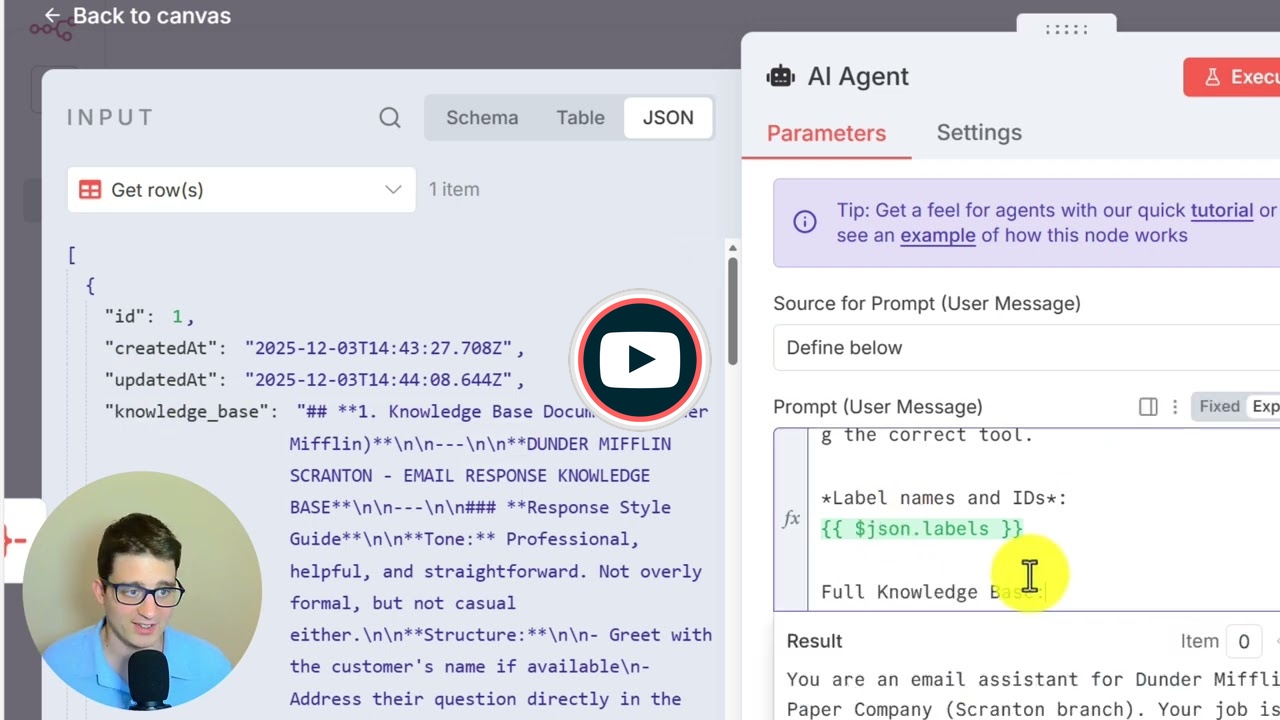
Want to automate your inbox or need a custom workflow? 📞 Book a Call | 💬 DM me on Linkedin
What This Workflow Does
This AI-powered email assistant automatically processes incoming Gmail messages, categorizes them, adds appropriate labels, and drafts intelligent responses based on your company’s knowledge base. When a new email arrives, the AI agent analyzes the content, determines the category (such as “existing_order” or “quote_request”), applies the correct Gmail label for organization, and drafts a contextually appropriate response. You receive a Telegram notification with a direct link to review and send the draft with one click.
Key Features
- Automatic Email Categorization: The AI analyzes incoming emails and assigns them to predefined categories
- Smart Response Drafting: Generates detailed, personalized responses using your company’s knowledge base
- Gmail Label Management: Automatically applies appropriate labels to keep your inbox organized
- Instant Notifications: Get Telegram alerts with direct links to review drafts
- Knowledge Base Integration: Uses n8n Data Tables to store company information, pricing, policies, and common responses
Common Use Cases
- Customer support teams handling quotation requests
- Sales teams managing order inquiries
- Small businesses automating routine email responses
- Anyone wanting to save hours on email management each week
Setup and Configuration
Required Accounts:
- Gmail account with OAuth2 connection
- OpenAI API account for the chat model
- Telegram bot for notifications
Initial Setup:
- Connect your Gmail account to both the Gmail Trigger and Gmail tool nodes
- Create a Data Table called “Customer Support Knowledge Base” containing your business information, response style guide, product details, pricing, delivery policies, and FAQs
- Configure your Telegram bot credentials and update the chat ID in the Telegram node
- Set up your OpenAI API credentials
Customization:
- Knowledge Base: Populate the Data Table with your specific company information - this is what the AI uses to draft accurate responses
- AI Prompt: Adjust the categorization rules and response criteria in the AI Agent node to match your business needs
- Polling Frequency: The Gmail Trigger checks for new emails every minute by default; modify this in the trigger settings if needed
The workflow uses the “Simplify” option turned off in the Gmail Trigger to ensure the AI receives the full email text for processing.
🔗 Nodes Used
Gmail, Gmail Trigger, AI Agent, OpenAI Chat Model, Data table
📥 Import
Download workflow.json and import into n8n:
Workflow menu → Import from File