🎫 Triage Gmail inbox, route emails with Jev, and draft replies with OpenAI
⚡ 56 views · 🎫 Ticket Management & Triage
Description
Quick overview
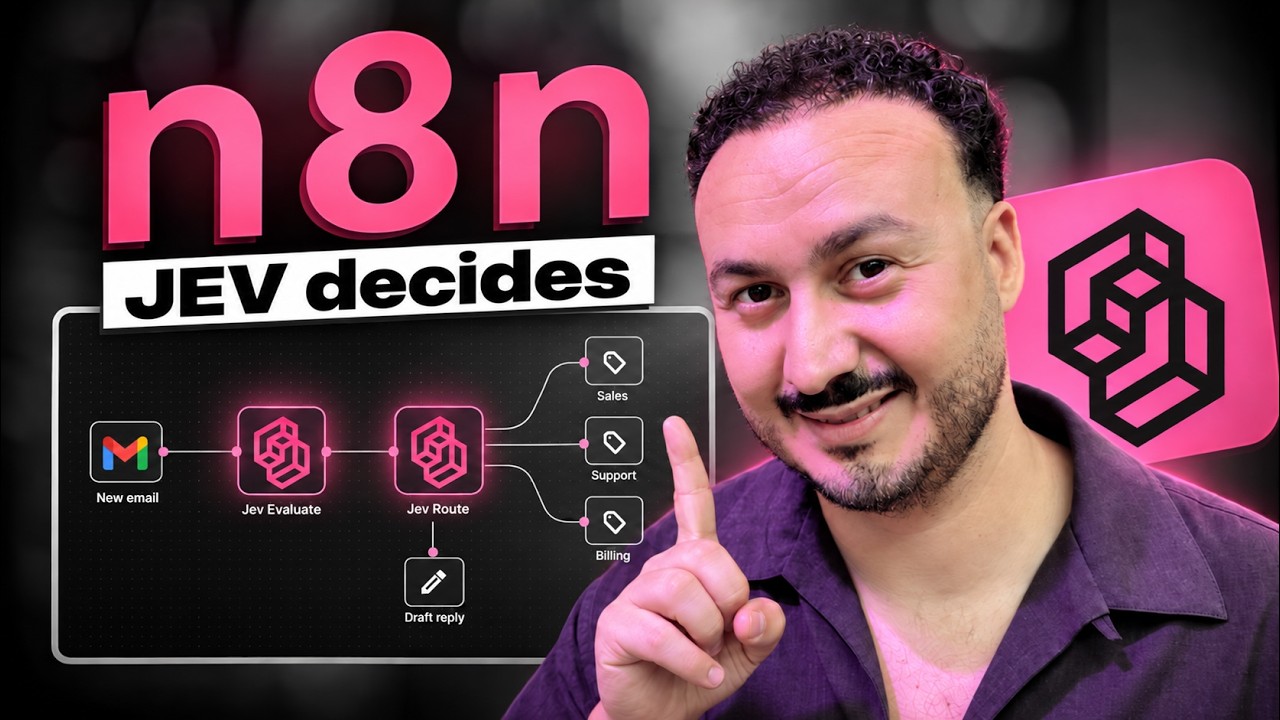
This workflow monitors unread Gmail inbox messages, uses TypeSafe AI Jev to score urgency and route each email to a department label, and, when a reply is needed, uses OpenAI to generate a Gmail draft reply and logs all decisions to an n8n Data Table.
How it works
- Triggers every minute when a new unread email arrives in your Gmail inbox.
- Extracts key fields (sender, subject, body, thread ID) and builds a condensed email context for downstream processing.
- Uses TypeSafe AI Jev to score the email’s urgency and estimate whether it needs a personal reply and whether the sender is upset.
- Uses TypeSafe AI Jev to route the email to Sales, Support, Billing, Partnerships, Newsletters, Spam, or a low-confidence “To review” path.
- Adds the corresponding Gmail label to the message and records the chosen department and routing confidence.
- If Jev predicts the email needs a reply (and it is not Spam or Newsletters), OpenAI generates a short reply draft and saves it as a Gmail draft in the same thread.
- Logs the email metadata, Jev scores, routing decision, and whether a draft was created to an n8n Data Table.
Setup
- Add a Gmail OAuth2 credential and ensure the Gmail trigger can read unread emails from your target mailbox.
- Install and configure the TypeSafe AI community node (@typesafe-ai/n8n-nodes-typesafe-ai) if needed, then add a TypeSafe AI API credential for the two Jev steps.
- Add an OpenAI API credential and select the model you want to use for drafting replies.
- Create the required Gmail labels (Sales, Support, Billing, Partnerships, Newsletters, Spam, and To review) and map each label ID in the corresponding Gmail labeling steps.
- Create an n8n Data Table for logging and select its ID in the logging step, then update the Configuration values (company context, thresholds, signature, and body length) before activating.
Additional info
📥 Open full documentation on Notion
Need help customizing? Contact me for consulting and support : Linkedin
🔗 Nodes Used
Gmail, Gmail Trigger, Basic LLM Chain, OpenAI Chat Model, Data table
📥 Import
Download workflow.json and import into n8n:
Workflow menu → Import from File